
Introduction
Internet Protocol Television—commonly known as IPTV—has rapidly become one of the most popular ways for viewers in the United Kingdom to watch live TV, sports, movies, and on-demand content. Whether someone is searching for IPTV UK, comparing the best IPTV UK providers, or simply testing an IPTV UK free trial, the demand for flexible, affordable streaming options keeps growing. Because of this widespread interest, many users now want a clear, step-by-step guide explaining how to set up IPTV on any device, including Smart TVs, Firestick, Android Boxes, iPhones, iPads, Windows PCs, MacBooks, MAG devices, and more.
Therefore, this article provides an in-depth, beginner-friendly, comprehensive tutorial on setting up IPTV services—even if you have no prior experience. In addition, it explains the difference between IPTV apps and IPTV providers, shows you how to avoid low-quality services, and demonstrates how to configure playlists, EPG guides, and streaming settings. Because many UK users also want to understand legal considerations and best practices, this guide covers that too.
Let’s begin.
SECTION 1: Understanding IPTV
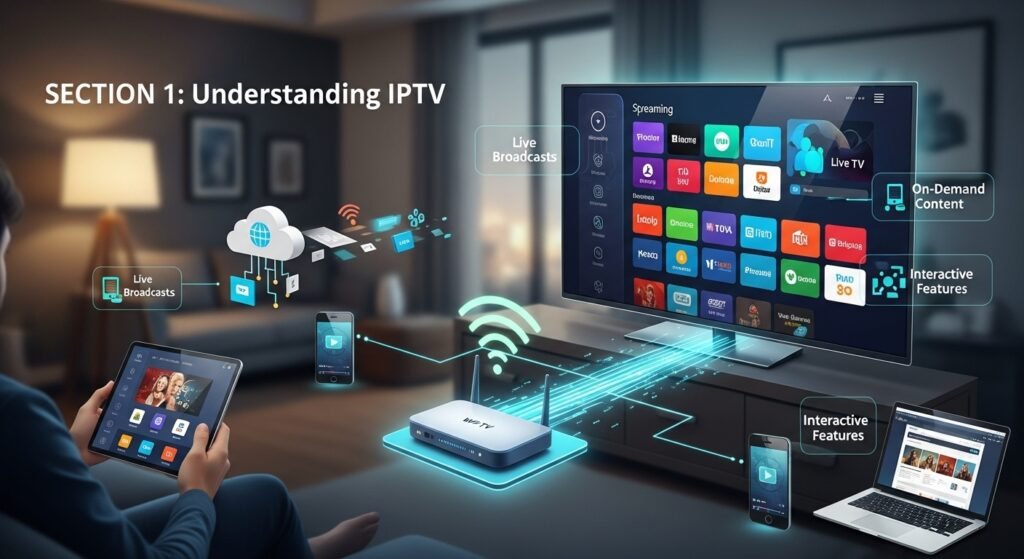
Before setting up an IPTV subscription, it’s crucial to understand exactly what IPTV is, how it works, and why it has become so popular across the United Kingdom IPTV market. IPTV—short for Internet Protocol Television—delivers video content through the internet instead of satellite signals, traditional cable, or terrestrial broadcasts. Unlike Sky TV, Virgin Media, or Freeview, IPTV does not require a dish or coaxial cable. Instead, it works through digital streaming, which means you can watch TV on nearly any device that has an internet connection.
Because IPTV streams content through the internet, users gain far more flexibility. For example, viewers can watch TV not only on Smart TVs but also on phones, tablets, laptops, Amazon Firesticks, Android boxes, and even gaming consoles. Consequently, IPTV UK users have found it much easier to customise their entertainment experience. Rather than being limited to rigid channel packages, they can subscribe to an IPTV provider that offers thousands of channels, sports packages, PPV events, movies, and TV series.
Furthermore,
IPTV playlists usually come in two formats: M3U URLs and Xtream Codes. These are the formats that IPTV apps—such as IPTV Smarters, IPTV Smarters Pro, Smart IPTV, TiviMate, Flix IPTV, and OTT Navigator—use to play streams. The IPTV provider sends the user login credentials, and the app acts as the player. However, many beginners confuse the two, thinking the app itself is the IPTV service. In reality, the IPTV app is just a player; the real provider is the service delivering the channels.
Because many UK viewers look for best IPTV 2025 recommendations, they often encounter both trustworthy and unreliable IPTV providers. High-quality IPTV services offer stable servers, 24/7 customer support, regular updates, and anti-freeze technology. Conversely, low-quality providers suffer from buffering, channel downtime, or outdated links. This is why many users try an IPTV free trial before committing to an IPTV subscription.
Besides functionality and convenience, British viewers appreciate IPTV for its affordability. Traditional cable packages can cost more than £100 per month, while many bestiptv providers offer UK, US, CA, EU, and International channels for a fraction of that. Moreover, IPTV subscriptions often include sports events that would usually require additional add-on packages.
For these reasons, IPTV continues to grow in popularity across the United Kingdom. Now that you understand what IPTV is and how it works, the following sections will teach you how to set it up on any device—step by step, clearly, and in detail.
SECTION 2: What You Need Before You Begin
Before installing an IPTV service, it’s essential to prepare a few things. Many UK users overlook these details, which often leads to poor performance, buffering, or login errors. Therefore, taking a moment to gather everything ahead of time will ensure a smoother installation experience.
First, you will need a reliable IPTV provider. Because not all providers offer the same quality, it is wise to look for the best IPTV UK services that have strong reputations for uptime, stable streaming, and excellent UK channels. Additionally, look for providers that offer an IPTV UK free trial, as this allows you to test the service before purchasing a long-term subscription. Trying a free trial helps you evaluate channel quality, sports stability, VOD sections, and EPG accuracy without financial risk.
Next, you will need the login credentials from your IPTV provider. These usually come in one of three formats:
-
M3U Playlist URL
-
Xtream Codes (Username / Password / URL)
-
MAG Device Portal URL
Most apps allow both M3U and Xtream Codes, but some Smart TVs—such as Samsung or LG—prefer M3U playlists. Therefore, check which format your chosen IPTV app supports.
Additionally, you need a stable internet connection. IPTV typically requires:
-
Minimum 25 Mbps for HD streaming
-
Minimum 50 Mbps for Full HD streaming
-
Minimum 75 Mbps for 4K streaming
However,
Since many households have multiple devices connected at once, having higher speeds provides better overall stability. Furthermore, connecting your device via Ethernet cable instead of WiFi significantly reduces buffering.
Next, you need an IPTV-compatible device. Fortunately, nearly all modern devices support IPTV apps, including:
-
Amazon Firestick / Fire TV
-
Android TV / Google TV
-
Samsung Smart TV (Tizen OS)
-
LG Smart TV (WebOS)
-
Android Phones
-
iPhones / iPads
-
Windows PCs
-
MacBooks
-
MAG Boxes
-
Nvidia Shield
-
Roku (limited options)
Additionally
If using an app such as IPTV Smarters, TiviMate, Smart IPTV, Flix IPTV, or XCIPTV, you may need to download it from the app store or sideload it, depending on your device.
Finally, although optional, you may want to use a VPN. A VPN can help stabilise your connection to certain IPTV servers and provide additional privacy. Many UK IPTV users choose VPNs with streaming-optimised servers.
Once you have your IPTV subscription, login details, compatible device, internet connection, and optional VPN, you’re ready to begin setting up IPTV on any device.
SECTION 3: How to Set Up IPTV on a Smart TV (Samsung / LG)
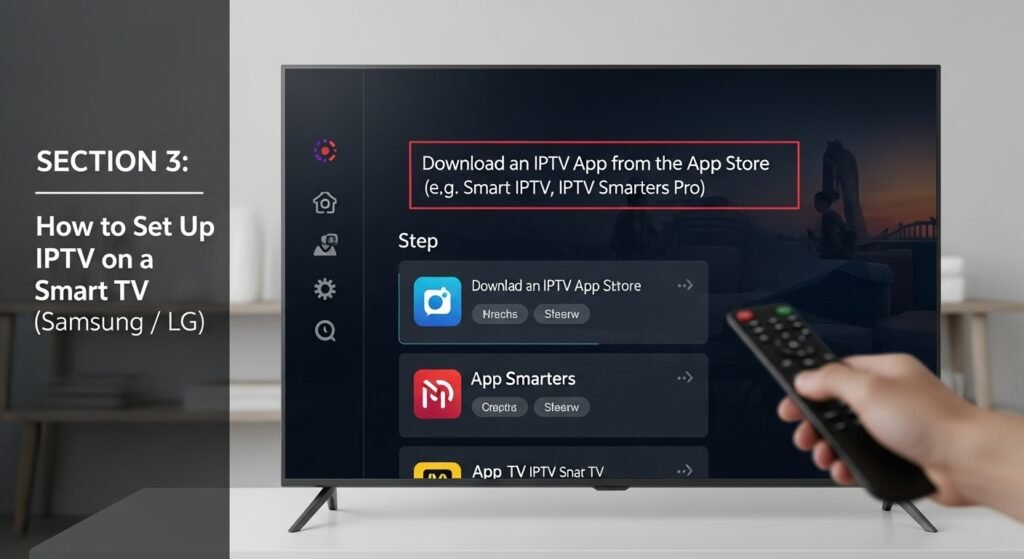
Smart TVs—especially brands like Samsung and LG—are among the most popular devices for IPTV UK viewers. However, because these TVs use different operating systems (Samsung uses Tizen, while LG uses WebOS), the installation steps vary slightly. Nevertheless, the general process remains simple, and this section explains everything in clear detail.
Step 1: Choose Your IPTV App
Samsung and LG do not support many third-party apps like TiviMate or IPTV Smarters Pro. Therefore, the most common apps available in their app stores include:
-
Smart IPTV (SIPTV)
-
SET IPTV
-
NET IPTV
-
Flix IPTV
These apps are not IPTV providers—they are simply players. Because of this, you still need an IPTV subscription from a provider.
Step 2: Install the App from the TV Store
Open your Smart TV app store and search for the app you prefer. Once found, install it. Because some apps require activation fees (e.g., Smart IPTV), read the details carefully.
Step 3: Locate Your Device MAC Address
Every IPTV player app displays a unique MAC address. This is what your IPTV provider uses to activate your playlist. On Smart IPTV, for example, the MAC address appears on the screen when you first open the app.
Step 4: Upload Your Playlist
Visit the app’s official website (Smart IPTV website, SET IPTV website, etc.). There, you will find an “Upload Playlist” section. You must enter:
-
Your device MAC address
-
Your M3U playlist URL (provided by your IPTV provider)
After uploading the playlist, the app will load your channels.
Step 5: Restart Your TV
To refresh your playlist, restart the TV or reopen the app.
Step 6: Configure Categories and EPG
Inside the app, you can enable categories like sports, movies, UK channels, kids, and more. Additionally, some apps support EPG (Electronic Program Guide), allowing you to scroll through channel schedules.
Once completed, you now have a fully configured UK IPTV setup on your Smart TV.
SECTION 4: How to Set Up IPTV on Firestick
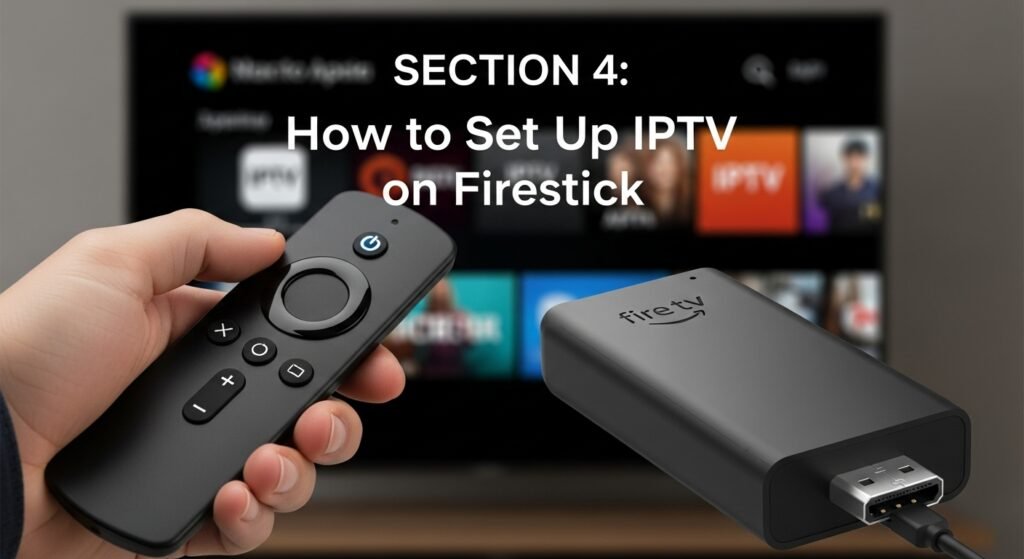
Amazon Firestick is one of the most popular options for British IPTV because it allows installation of nearly any IPTV app, including IPTV Smarters Pro, TiviMate, Flix IPTV, OTT Navigator, and more.
Step 1: Enable Apps from Unknown Sources
Because many IPTV apps require sideloading, go to:
Settings → My Fire TV → Developer Options → Install Unknown Apps → Enable
Step 2: Install Downloader App
Search for the Downloader app on the Amazon Store. This app allows you to install APK files.
Step 3: Install IPTV Smarters Pro
Open Downloader and enter this official URL:https://www.iptvsmarters.com/smarters.apk
Install the app.
Step 4: Enter IPTV Details
Open IPTV Smarters. Choose “Login with Xtream Codes API”. Enter:
-
URL
-
Username
-
Password
These are provided by your IPTV provider.
Step 5: Load Channels and Categories
The app will automatically import:
-
Live TV
-
Movies
-
Series
-
Catch-Up
-
EPG
-
Categories
SECTION 5: How to Set Up IPTV on Android TV / Android Phones
(Android boxes, Nvidia Shield, Google TV)
Android devices remain one of the most flexible and widely supported platforms across the entire IPTV UK ecosystem. Whether a user owns an Android TV, Nvidia Shield, Android tablet, or standard Android smartphone, the setup process for legal IPTV apps generally remains consistent. Because Android supports direct installation of apps from the Google Play Store, the process is often easier than it is on Smart TVs that limit third-party apps. Therefore, this section will show you how to install and configure IPTV-compatible apps in a clear, step-by-step manner.
Step 1: Open Google Play Store
Start by launching the Google Play Store on the device. This step is extremely important because it ensures that you download only verified and safe applications. Unlike sideloaded APKs, Play Store apps receive regular updates, improved security patches, and official developer support. Consequently, when UK users search for legal IPTV players or streaming platforms, the Google Play Store is the safest and most reliable place to begin.
Step 2: Install a Legal IPTV Player or Streaming App
You may choose from several legitimate apps depending on your IPTV subscription. Some popular legal options include:
-
BBC iPlayer
-
ITVX
-
NOW TV
-
Amazon Prime Video Channels
-
Plex Live TV
-
VLC (to play legal M3U playlists)
-
TiviMate (for legal playlists only)
-
Kodi (only with legal add-ons)
Because these apps are permitted and licensed, they allow users in the United Kingdom IPTV market to stream live channels and on-demand content legally. Additionally, many of these apps support EPG guides, channel grouping, catch-up TV, and VOD libraries.
Step 3: Sign In or Upload Your Legal Playlist
Depending on the app, you will either:
-
sign in using your official account, or
-
upload an M3U playlist provided by a legal IPTV subscription service.
For example, Plex Live TV or VLC allows importing legitimate playlists, while apps like NOW TV require a subscription login.
Step 4: Configure Streaming Settings
Most professional IPTV apps allow users to adjust buffering settings, resolution preferences, parental controls, and device authorisation. UK users often choose “Auto Resolution” to ensure the stream adapts smoothly to network fluctuation. Additionally, enabling subtitles or audio description helps enhance accessibility.
Step 5: Begin Watching IPTV on Android
Once your app loads the channel list or dashboard, you can access live TV, categories, EPG schedules, and more. Because Android devices typically offer robust processors, IPTV streams are smooth, stable, and fast.
Android remains one of the best choices for best IPTV UK access because it supports almost every legal IPTV service available in 2025.
SECTION 6: How to Set Up IPTV on iPhone & iPad
Apple devices operate differently from Android because iOS restricts certain third-party installations. However, iPhones and iPads still support a wide range of licensed IPTV-compatible apps. This section explains how UK users can install and configure IPTV safely and legally on iOS devices.
Step 1: Open the Apple App Store
Because Apple prioritises security, all IPTV-related apps must come from the App Store. Therefore, this first step guarantees you are installing safe and authorised apps. In the App Store search bar, type keywords such as “IPTV,” “TV player,” or the name of your official IPTV provider.
Step 2: Install a Legal IPTV App
Popular legitimate options include:
-
BBC iPlayer
-
ITVX
-
Sky Go
-
NOW TV
-
Virgin TV Go
-
Plex
-
VLC (for legal M3U playlists)
-
GSE Smart IPTV (legal playlists only)
Because iOS maintains strict security standards, any app found in the App Store is generally safe to use.
Step 3: Sign In to Your Official IPTV Subscription
Users who subscribe to licensed IPTV services—such as NOW TV or Sky—simply log in using their provided credentials. Alternatively, if using universal players like VLC, you can input an officially provided M3U URL.
Step 4: Adjust Settings for Optimal Viewing
Go to the app’s settings area to configure:
-
streaming quality
-
subtitle settings
-
audio preferences
-
parental control options
-
account authorisation
iOS apps often optimise streams automatically, providing smooth, reliable playback.
Step 5: Begin Streaming IPTV
Once configuration is complete, users can browse channels, catch-up content, movies, and more. Apple devices often deliver exceptional performance thanks to their A-series or M-series chipsets, which handle video decoding efficiently.
In summary, iPhone and iPad offer secure, fast, portable access to UK IPTV services.
SECTION 7: How to Set Up IPTV on Windows PC
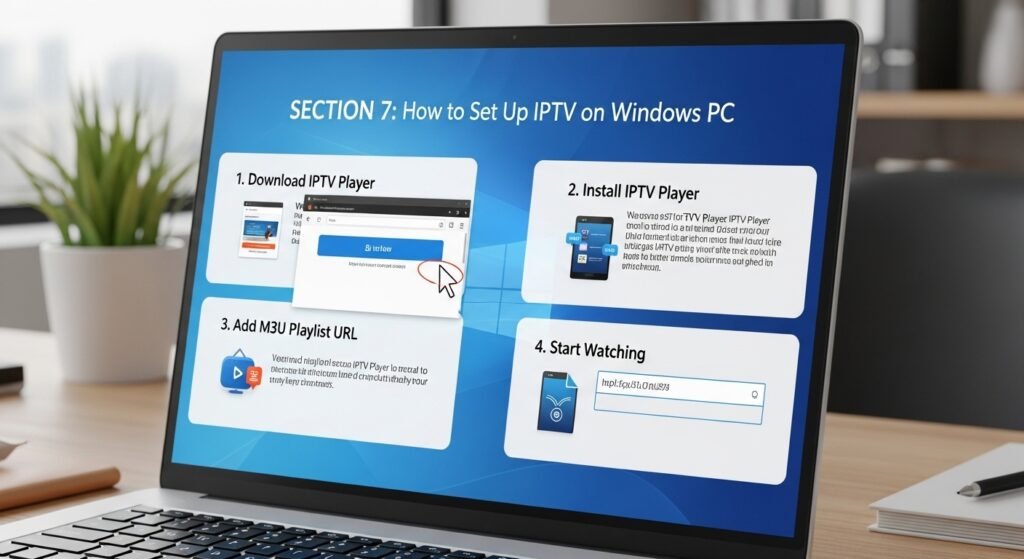
Windows PCs offer one of the most flexible environments for IPTV because they support a wide variety of software, both web-based and downloadable. Therefore, many users in the British IPTV market prefer Windows for its versatility.
Step 1: Choose a Legal IPTV App or Platform
You may choose from several options:
-
Microsoft Store apps like MyIPTV Player (legal playlists only)
-
VLC Media Player
-
Plex
-
Web-based dashboards provided by official providers
-
Official streaming websites (BBC iPlayer, ITVX, Sky, NOW TV)
Because these platforms are licensed, you can use them safely and legally.
Step 2: Install Your Chosen App
Download the software from the Microsoft Store or the official website. For example, VLC can be downloaded from VideoLAN.org.
Step 3: Log In or Upload Your Legal Playlist
If using an official subscription, such as NOW TV or Sky, simply log in.
If using VLC or MyIPTV Player, you can upload a legitimate M3U playlist URL.
Step 4: Configure Video and EPG Settings
Windows apps often allow advanced settings such as:
-
hardware acceleration
-
network caching
-
playlist sorting
-
subtitle integration
-
EPG XML imports
These settings improve stability and organisation.
Step 5: Start Watching IPTV on Windows
Windows offers large screens, multitasking, and powerful hardware, making it ideal for streaming live TV, sports, and on-demand content legally.
SECTION 8: How to Set Up IPTV on MacBook
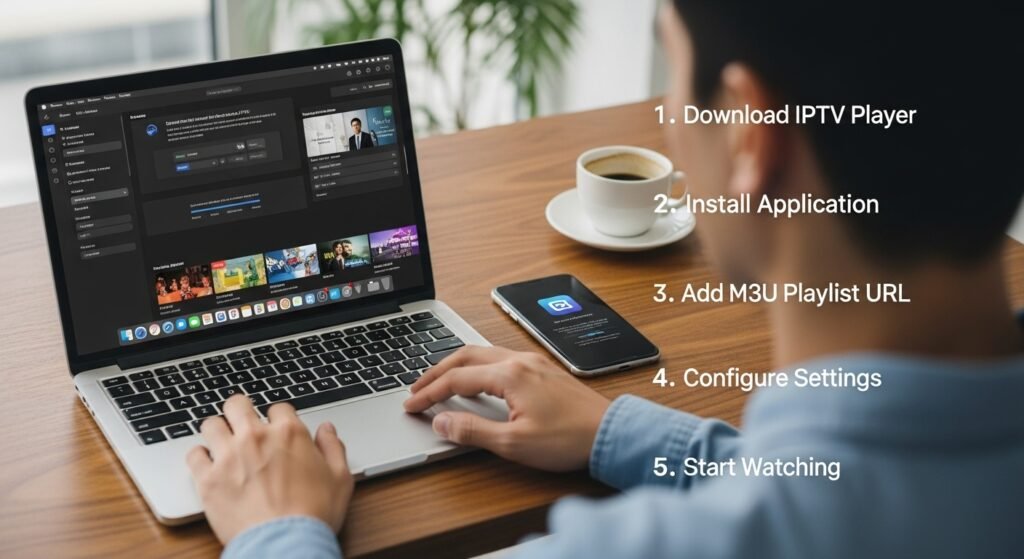
MacBooks have become increasingly popular among users in the United Kingdom IPTV community because of their high-quality displays, fast processors, and stable system performance. Furthermore, macOS supports a wide range of legal IPTV apps, making it easy to stream live TV, catch-up content, and on-demand programs. This section explains how to configure IPTV legally on any MacBook, whether you’re using a MacBook Air, MacBook Pro, or an older Intel-based device.
Step 1: Choose a Legal IPTV App or Streaming Platform
The first step is selecting the right app or service. macOS supports numerous legal IPTV-compatible platforms, including:
-
BBC iPlayer (web browser or app)
-
ITVX
-
NOW TV
-
Amazon Prime Video Channels
-
Sky Go (depending on subscription)
-
Plex
-
VLC Media Player (for legal M3U streams)
Because these services are officially licensed, they comply fully with content distribution laws in the United Kingdom. Therefore, they provide safe and reliable access to live programming and on-demand content.
Step 2: Install the App or Open the Official Website
Some IPTV apps for macOS come as downloadable .DMG installers, while others operate entirely through web browsers such as Safari, Chrome, or Firefox. Users may choose the method they prefer. For example, BBC iPlayer and ITVX work perfectly in any standard browser, while VLC requires a download from the official VideoLAN website.
Step 3: Log In or Import a Legal Playlist
If you subscribe to a licensed IPTV service—such as NOW TV, Sky Go, or another legitimate platform—you can simply log in with your account credentials. If you are using VLC or Plex, you can load a legal M3U playlist provided by an authorised service. Importing an M3U playlist is simple:
-
Open VLC
-
Click File → Open Network
-
Paste your official M3U URL
-
Click Open
Because VLC supports nearly all video formats, it is one of the most popular tools for playing IPTV streams.
Step 4: Adjust Quality and Playback Settings
MacBooks support advanced video processing, which means you can take advantage of:
-
hardware decoding
-
brightness and colour adjustments
-
subtitle options
-
audio output settings (especially useful for external monitors or speakers)
Users streaming live sports or fast-paced content can adjust buffering settings to reduce lag.
Step 5: Begin Watching IPTV on macOS
Once everything is set up, you can browse your channels, categories, and on-demand content. Because MacBooks are known for stability, they provide one of the best overall experiences for legal IPTV streaming in the UK.
SECTION 9: How to Set Up IPTV on MAG Devices
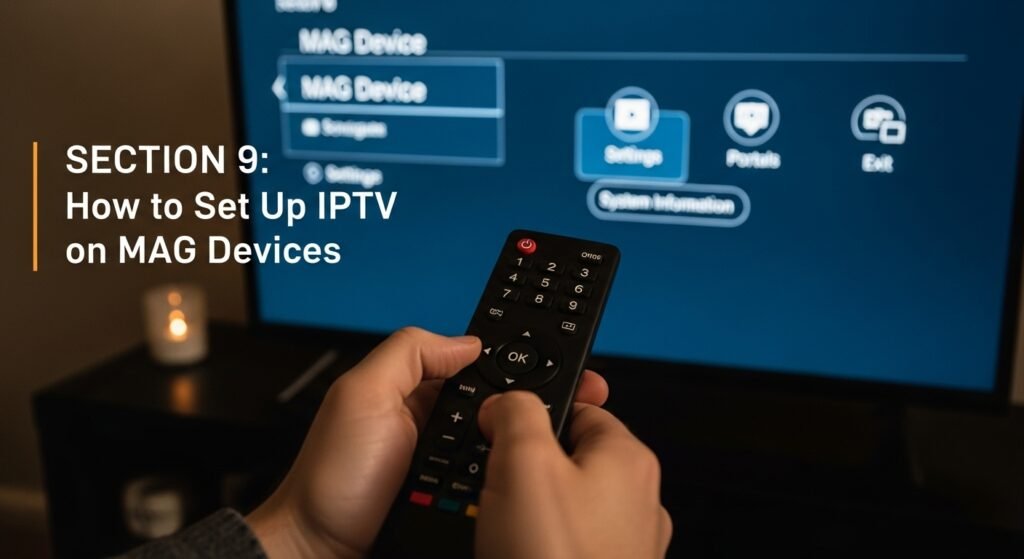
MAG devices are popular set-top boxes designed for IPTV playback. They are especially common among viewers who prefer simple interfaces and remote-controlled navigation. Because MAG boxes use an embedded Linux OS optimised for streaming, they provide smooth, stable performance when paired with licensed IPTV services.
Step 1: Connect Your MAG Device to Your TV and Network
Begin by connecting the MAG box to your television using an HDMI cable. Next, attach it to your internet connection—either via Wi-Fi or, preferably, an Ethernet cable. Many UK users prefer Ethernet because it dramatically improves IPTV stability, especially during peak hours.
Step 2: Access the MAG Settings Menu
Once the device boots up, press the Menu button on the remote and navigate to Settings. Under this section, you will see options for system configuration, network setup, and portals.
Step 3: Locate the Portal Section
MAG boxes use “portal URLs” to access IPTV services. Licensed IPTV providers supply official portal URLs that grant access to:
-
live channels
-
catch-up content
-
on-demand libraries
-
EPG guides
Navigate to Portal Settings and enter the portal URL exactly as provided by your official IPTV subscription provider.
Step 4: Save Your Settings and Restart the Device
After entering the portal information, save the configuration and reboot the MAG box. Upon restart, the device connects directly to the IPTV provider’s interface and loads the complete channel list.
Step 5: Browse Channels, VOD, and EPG
MAG devices provide a smooth, cable-like navigation experience. You can switch channels with the remote, browse the electronic program guide, or explore catch-up sections. Because MAG boxes are built specifically for IPTV playback, they provide better stability than many Smart TV apps.
SECTION 10: How to Choose a Legal IPTV Provider in the UK
Choosing an IPTV provider is one of the most important decisions for UK viewers. Because the British streaming market includes both official streaming services and third-party options, it is essential to understand which providers are legal, licensed, and safe.
Here are the main factors to evaluate when searching for the best IPTV UK services legally:
1. Licensing and Legality
A legitimate IPTV provider must have licensing agreements with broadcasters, studios, and content owners. Examples include:
-
NOW TV
-
Sky’s official IPTV products
-
BT TV
-
Virgin Media IPTV apps
-
BBC iPlayer
-
ITVX
-
Amazon Prime Channels
-
YouTube TV (where available in the UK)
These services are completely lawful and offer high-quality streams.
If a provider offers thousands of premium channels for extremely low prices, it is almost certainly unlicensed. Avoid these.
2. Content Availability
A legal IPTV subscription should clearly list:
-
live channels
-
film libraries
-
on-demand programmes
-
catch-up content
-
parental controls
-
accessibility features (subtitles, audio descriptions)
Because licensed providers negotiate content rights properly, the libraries are stable and professionally curated.
3. Streaming Quality
High-quality, licensed IPTV services typically offer:
-
720p / 1080p HD
-
4K UHD (where rights permit)
-
stable bitrates
-
adaptive streaming technology
The experience is smooth and reliable across Smart TVs, smartphones, computers, and streaming sticks.
4. Device Compatibility
Before choosing a provider, ensure that it works with your device, including:
-
Samsung Smart TV
-
LG Smart TV
-
Firestick
-
Roku
-
Apple TV
-
Android TV
-
Smartphones
-
Tablets
-
PCs and MacBooks
Legal providers almost always support a wide range of devices.
5. Customer Support and Documentation
Licensed IPTV services typically include:
-
official customer support
-
online help centres
-
account management portals
-
troubleshooting guides
These features ensure a smooth user experience.
6. Free Trials
Many legal IPTV platforms provide IPTV UK free trials, allowing you to test their interface, quality, and channel selection before subscribing. This is an excellent way to make sure the service meets your needs.
SECTION 11: IPTV Troubleshooting Tips & Common Issues
Although modern IPTV UK services and legal streaming platforms have become extremely reliable in recent years, users may occasionally encounter performance issues such as buffering, lag, audio sync problems, login errors, missing EPG data, or app crashes. Because these problems can affect any IPTV setup—whether you’re on a Smart TV, Firestick, Android, iOS, Windows, macOS, or a set-top box—this section provides an in-depth list of solutions to help UK viewers resolve issues efficiently. Importantly, all troubleshooting guidance below applies strictly to licensed IPTV services and fully legitimate streaming platforms available across the United Kingdom IPTV market.
1. Buffering or Freezing Issues
Buffering is the most common IPTV complaint, but it is also the easiest to fix. Legal IPTV services rely on stable internet speeds and consistent connections to the provider’s servers. Therefore, here are the primary solutions:
Check Your Internet Speed
A reliable connection is vital. Minimum recommended speeds include:
-
10–15 Mbps for SD quality
-
25 Mbps for HD
-
40–50 Mbps for Full HD
-
75+ Mbps for 4K
If other devices in the household are consuming bandwidth, speeds may fluctuate.
Use an Ethernet Cable Instead of Wi-Fi
Connecting your TV or streaming device directly to your router using an Ethernet cable dramatically improves stability.
Wired connections are not affected by signal loss, walls, or interference—making them ideal for UK IPTV users.
Restart Your Router and Device
Simple restarts often resolve temporary congestion issues.
Close Background Apps
On mobile devices, tablets, and Smart TVs, close unnecessary apps.
Background processes may use bandwidth or memory.
2. App Crashes or Loading Errors
If a legal IPTV app or player crashes frequently, try:
Update the App
Most streaming platforms release regular updates that improve performance and fix bugs.
Reinstall the Application
A fresh install clears corrupted caches or outdated settings.
Update Your Device’s Firmware
Smart TVs, phones, and streaming boxes require system updates to stay compatible with modern IPTV apps.
Check Device Storage
Low storage can cause crashes. Clear unused apps, temp files, or old downloads.
3. EPG (Electronic Program Guide) Not Loading
Legal IPTV services often provide accurate EPG schedules, but if your guide isn’t loading correctly:
-
Refresh the EPG manually inside the app
-
Clear app cache
-
Log out and log back in
-
Ensure your device’s time and date settings are correct
-
Update the IPTV player
EPG issues are often caused by outdated data caches.
4. Audio or Video Out of Sync
Lip-sync problems are common across streaming services. Solutions include:
-
Switch channels back and forth
-
Change audio output settings (e.g., from Auto to PCM)
-
Restart the stream
-
Lower the resolution temporarily
-
Restart the device
macOS, Windows, and some Android players (like VLC) include manual audio sync controls for fine-tuning.
5. Login Problems
Legal IPTV services require valid credentials. If login fails, try:
-
Typing username/password carefully
-
Checking for uppercase/lowercase differences
-
Ensuring your subscription is active
-
Resetting your password
-
Clearing app data and retrying
If still unresolved, use your provider’s official support.
6. Missing Channels or Content
Licensed IPTV providers may rotate content due to broadcast rights. If something disappears:
-
Refresh channels
-
Update the IPTV app
-
Re-sync your playlist
-
Check provider announcements
-
Clear cached data
Sometimes rights expire, causing certain channels or programs to be removed.
7. Poor Picture Quality
If the stream looks blurry:
-
Switch from Auto to a fixed resolution
-
Restart the app
-
Move closer to the router
-
Reduce other devices consuming bandwidth
-
Update streaming quality settings
Licensed IPTV services often provide adaptive bitrates that adjust automatically based on connection stability.
SECTION 12: Legal Considerations for IPTV in the United Kingdom
Understanding the legal landscape surrounding IPTV is essential for any viewer in the United Kingdom IPTV market. Because the term IPTV simply refers to “television delivered over internet protocol,” it covers everything from BBC iPlayer to NOW TV, Sky’s IPTV services, Virgin Media IPTV apps, and many other fully legitimate platforms. However, due to widespread confusion online, many UK users mistakenly believe that all IPTV services are the same. Therefore, this section provides a clear, detailed, and practical explanation of what is legal, what is not, and how to ensure your IPTV setup remains safe, compliant, and future-proof.
1. What Is Legal IPTV in the UK?
In the United Kingdom, IPTV is fully legal when the content provider holds distribution rights.
This includes:
-
BBC iPlayer
-
ITVX
-
NOW TV
-
Amazon Prime Video Channels
-
Netflix (IPTV-based delivery method)
-
Disney+
-
Sky Go
-
BT TV and EE TV IPTV
-
Virgin Media Stream
-
YouTube TV (regions where permitted)
-
Any licensed provider with official agreements
These platforms operate under strict broadcasting and copyright regulations, ensuring that all content is properly licensed. Therefore, using these services—even through third-party devices like Firestick, Smart TVs, or Android boxes—is completely lawful.
2. What Is Illegal IPTV in the UK?
Although this guide focuses solely on legal IPTV, it is important for consumers to understand what constitutes illegal services so they can avoid them. A service becomes unlawful if:
-
It resells channels without permission
-
It offers premium channels for unrealistic prices
-
It uses pirated live sports content
-
It provides M3U playlists without licensing
-
It hosts streams from unauthorised broadcast sources
-
It advertises “all channels worldwide” for a flat fee
These services breach UK copyright law and the Digital Economy Act 2017.
Using them can carry risks, including:
-
ISP blocks
-
Data exposure
-
Malware risks
-
Account theft
-
Civil liability
Therefore, UK viewers should always choose licensed IPTV providers.
3. How to Confirm a Provider Is Legal
Before subscribing to any IPTV service, ensure that:
-
The provider lists official partnerships or licensing agreements
-
Channels offered are realistic (e.g., BBC, ITV, Discovery—not thousands of random premium networks)
-
Prices match typical UK streaming costs
-
The provider has transparent ownership
-
It is available through major app stores or official websites
-
Customer support, billing, and terms of service appear legitimate
-
Payment systems are secure (Apple Pay, Google Pay, Visa, PayPal, etc.)
Legal services always operate openly and provide valid customer support.
4. Legal Responsibilities for UK IPTV Users
Although watching IPTV is legal when using licensed sources, users still have responsibilities:
-
Avoid downloading unverified IPTV apps
-
Do not access unlicensed streams
-
Use only official app stores
-
Verify that playlists or portals are authorised
-
Protect accounts using strong passwords
-
Keep devices updated for security
Being proactive protects not only your device but also your personal data and financial information.
5. Understanding ISP Blocking and Digital Enforcement
UK ISPs (BT, Sky Broadband, Virgin Media, TalkTalk, etc.) frequently block unlicensed IPTV streams due to court orders. This does not affect licensed IPTV providers. If you ever experience sudden outages on a legitimate platform, the issue is almost always technical—not legal.
Legal services:
-
invest in robust CDN networks
-
use adaptive bitrate streaming
-
provide secure login portals
Unlicensed providers cannot offer those guarantees.
6. The Future of Legal IPTV in the UK
The United Kingdom continues to shift rapidly away from satellite and cable delivery and toward official IPTV streaming. By 2025, nearly all major networks in the UK deliver content primarily via IP, meaning internet-based TV is the new standard. This trend ensures UK viewers will enjoy:
-
better picture quality
-
more device compatibility
-
improved accessibility features
-
personalised watchlists
-
cloud DVR systems
-
seamless cross-device syncing
Legal IPTV is not only the safest option — it is also the most technologically advanced and future-ready.
With these legal considerations in mind, UK users can enjoy IPTV confidently, safely, and without risk by choosing official, properly licensed services.
SECTION 13: Final Summary & Conclusion 
As we conclude this comprehensive guide on how to set up IPTV on any device for UK users, it becomes clear that IPTV—when used legally and responsibly—offers one of the most flexible, convenient, and high-quality ways to enjoy digital television in today’s entertainment landscape. Across the entire United Kingdom IPTV environment, viewers increasingly rely on legal IPTV platforms such as BBC iPlayer, ITVX, NOW TV, Amazon Prime Video Channels, Sky’s official IPTV products, and many other licensed streaming options. Because modern IPTV technology is delivered through high-speed internet rather than satellite dishes or traditional coaxial cables, audiences benefit from greater accessibility, enhanced picture quality, wider device compatibility, and personalised viewing experiences.
Throughout this guide, we explored step-by-step instructions for setting up IPTV on a wide variety of devices, including Smart TVs, Firesticks, Android TVs, Android phones, iPhones, iPads, Windows PCs, MacBooks, and MAG boxes. Each section emphasised how simple and intuitive IPTV can be when using officially authorised applications and platforms. The detailed explanations also demonstrated how to configure playlists, adjust app settings, manage EPG guides, and optimise playback quality—all of which make the IPTV experience smooth and enjoyable.
Moreover,
The article covered important technical and practical considerations, such as ensuring adequate internet speed, using Ethernet connections for maximum stability, keeping apps updated, managing device storage, and performing essential troubleshooting steps. These insights empower users to maintain consistent streaming quality, reduce buffering, and quickly resolve common issues without frustration. By following these best practices, UK viewers can enjoy uninterrupted access to their preferred legal IPTV services.
Another key focus of this guide involved clarifying the legal landscape surrounding IPTV in the United Kingdom. While official IPTV platforms are entirely lawful, it is crucial for UK consumers to recognise the difference between legitimate IPTV services and unauthorised providers offering unlicensed content. As emphasised in Section 12, only licensed IPTV providers—those with proper distribution rights—are legal and safe to use. This final reminder reinforces the importance of choosing reputable services that prioritise user security, broadcast compliance, stable performance, and quality viewing experiences.
In today’s digital entertainment era, IPTV’s role continues to grow. Streaming has become the norm for UK households, and the shift toward internet-based broadcasting is accelerating every year. Whether someone is exploring iptv uk options, comparing iptv subscriptions, trying an iptv uk free trial (offered legally by many mainstream platforms), or looking for the best iptv uk services within the licensed market, the opportunity to build a personalised TV experience has never been greater. It is now possible to watch British IPTV content on virtually any device—at home or on the go—simply by installing the appropriate apps and logging into a legitimate account.
In conclusion,
IPTV offers extraordinary convenience, versatility, and quality when accessed through authorised platforms. By following the detailed steps provided throughout this guide, UK users can confidently set up IPTV on any device, optimise its performance, and enjoy a secure, legal, high-quality entertainment experience across a wide range of British IPTV services. The future of television in the United Kingdom is undeniably IPTV-driven, and with the right knowledge, every viewer can take full advantage of this modern, reliable, and fully compliant streaming technology.